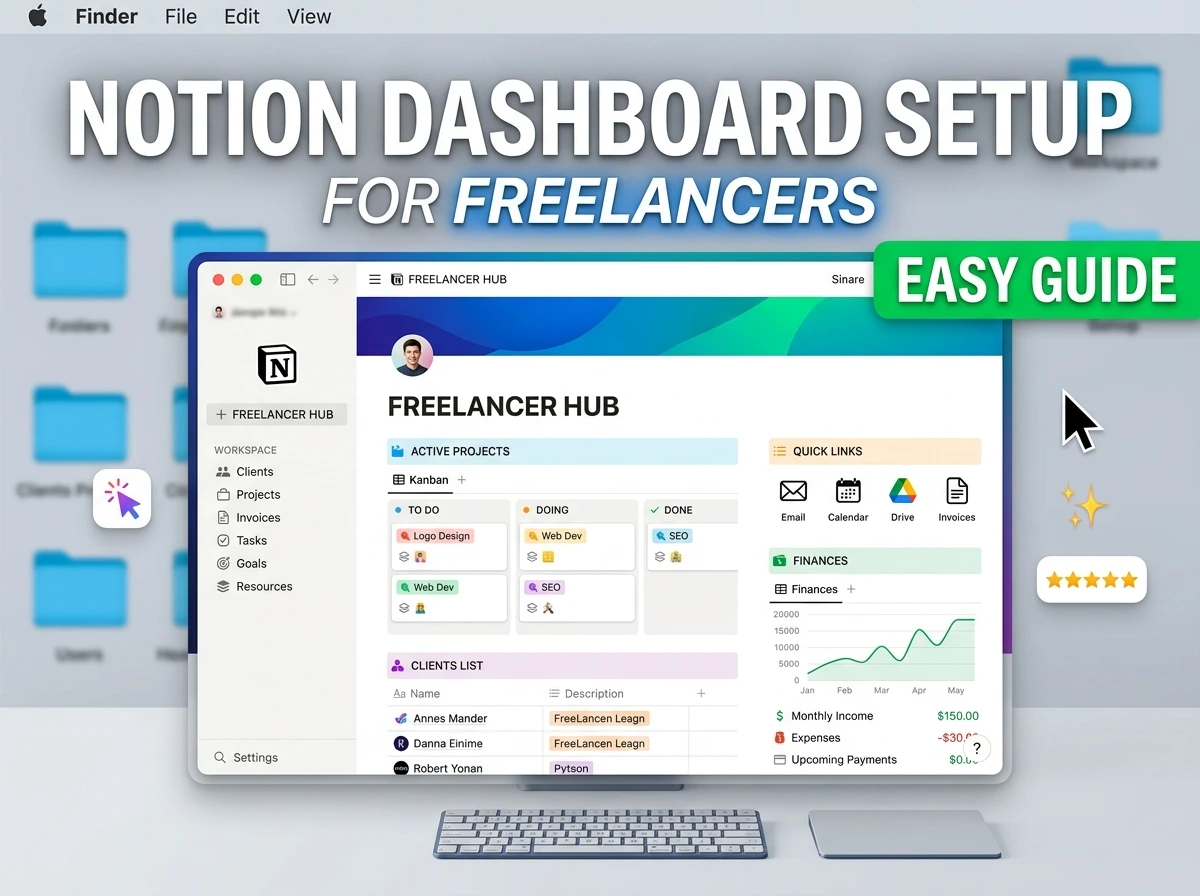

Here’s a stat that should worry anyone who just spent a weekend building a beautiful Notion template: most productivity systems are abandoned within three weeks of setup. Not because the tool was wrong, but because the system was built for an idealized version of work instead of the messy, interrupt-driven reality freelancers actually live in.
Freelancing means being the entire company. Sales, delivery, invoicing, admin all you, all the time, often within the same hour. Most tools assume a team with defined roles. Notion is one of the few that bends to fit a one-person operation instead of forcing you into someone else’s workflow.
This guide isn’t about building the prettiest dashboard on Pinterest. It’s about building one that survives contact with an actual freelance week, client emails at 11pm, a scope change nobody warned you about, an invoice you almost forgot to send.
What a Freelance Dashboard Actually Needs to Do
Before opening Notion, it’s worth being honest about what a dashboard is for. It’s not a productivity aesthetic. It’s a single page that answers three questions the moment you open it:
- Who am I working with, and where does each relationship stand?
- What’s due, and how close am I to trouble?
- What have I earned, and what’s still owed?
If your setup can’t answer those three things in under 10 seconds, it’s decoration, not infrastructure. Everything below is built around answering them fast.
Get started with Notion for free
Where Notion Fits Compared to Other Freelance Tools
| Tool | Best For | Free Plan | Setup Time | Freelance-Specific? |
|---|---|---|---|---|
| Notion | All-in-one workspace you build yourself | Yes – generous | 60–90 min | No – you customize it |
| Trello | Visual task boards | Yes – limited | 20–30 min | No – general use |
| HoneyBook | Full CRM, contracts, invoicing | No | Minimal | Yes – purpose-built |
| Dubsado | Client onboarding, contracts | Limited free tier | High | Yes – purpose-built |
| Airtable | Database-heavy tracking | Yes – limited | 60–90 min | No – requires setup |
| Google Sheets | Manual tracking | Yes – full | 15 min | No – fully manual |
If you want something free, flexible, and worth the setup time, Notion is the strongest pick here. If you’d rather pay monthly for automated invoicing and contracts baked in, HoneyBook or Dubsado do that work for you, at a cost Notion doesn’t have.
The Three Databases That Actually Matter
Skip the temptation to build ten interconnected databases on day one. Almost everything a freelancer needs comes down to three:
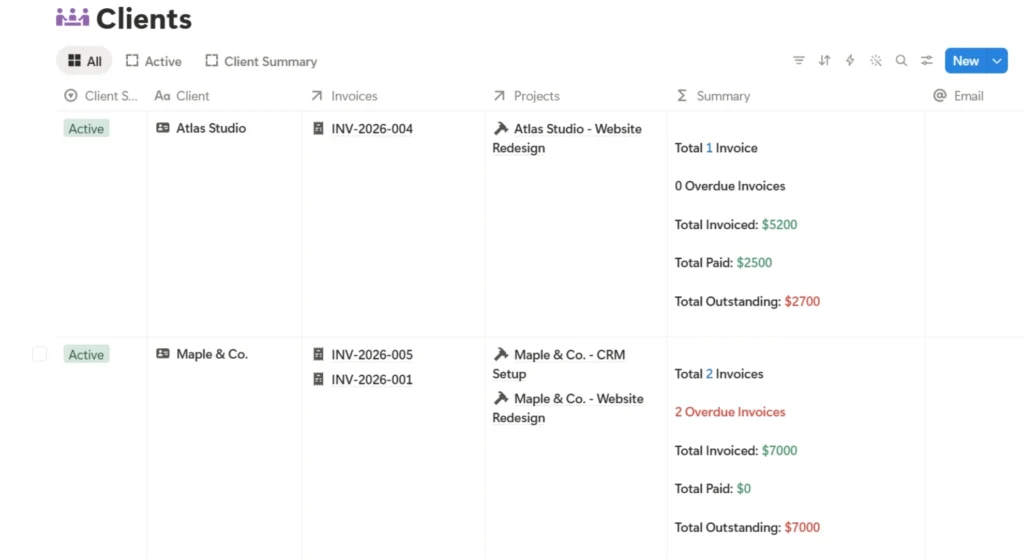
1. Clients — who you work with, their contact info, and current status (Active, Paused, Prospect).
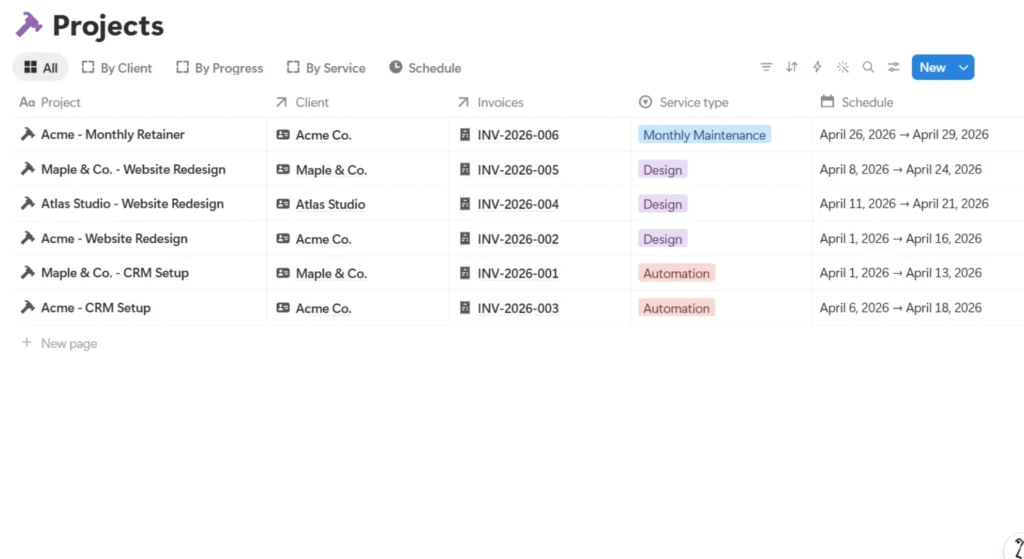
2. Projects — what you’re delivering, for whom, by when, and at what priority. This one connects to Clients via Notion’s Relation property, so opening a client instantly shows you every project tied to them.
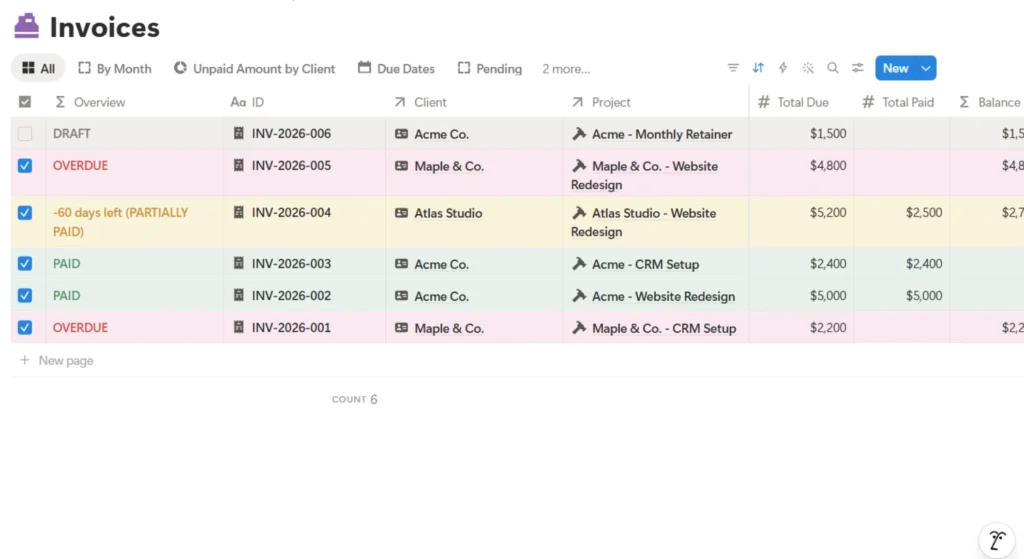
3. Income — what’s been invoiced, what’s paid, and what’s overdue. This is the section most freelancers either skip entirely or build so loosely it becomes useless within a month.
Everything else task lists, idea trackers, content calendars is optional seasoning. These three are the meal.
Setting It Up: A Walkthrough, Not a Rulebook
Create the page
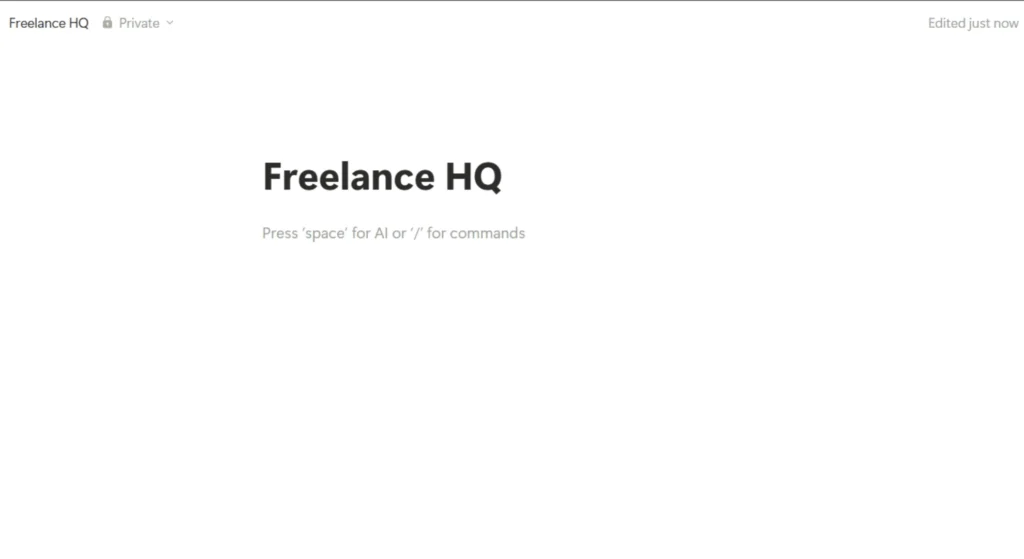
Open Notion, click “+ New page” in the sidebar, and title it something plain, “Freelance HQ” works fine. Start blank. Templates feel like a shortcut but usually mean adapting someone else’s brain instead of building your own.
Build the Clients database
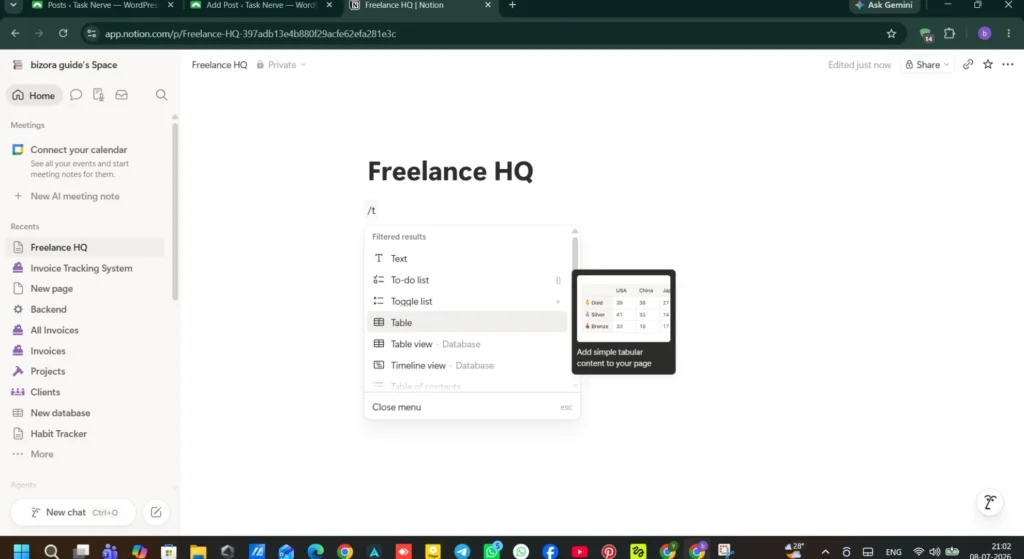
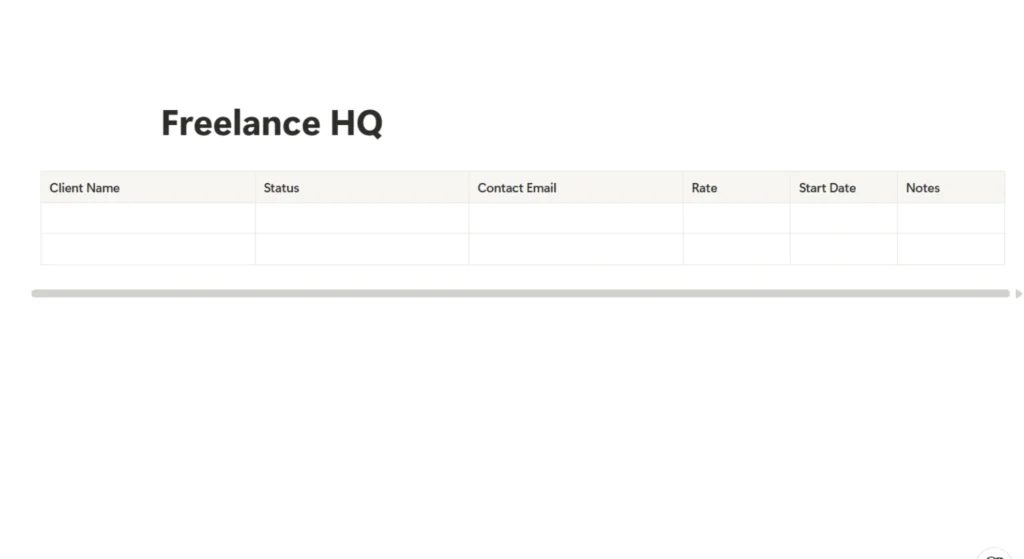
Type /table, choose inline table, and title it “Clients.” Give it these columns: Client Name (title), Status (select: Active/Paused/Prospect/Completed), Contact Email, Rate, Start Date, Notes. Add every current client even with gaps in the data, this forces information out of your inbox and into one place.
1 – First do this
2 – Then fill-up the data as follows
Build the Projects database
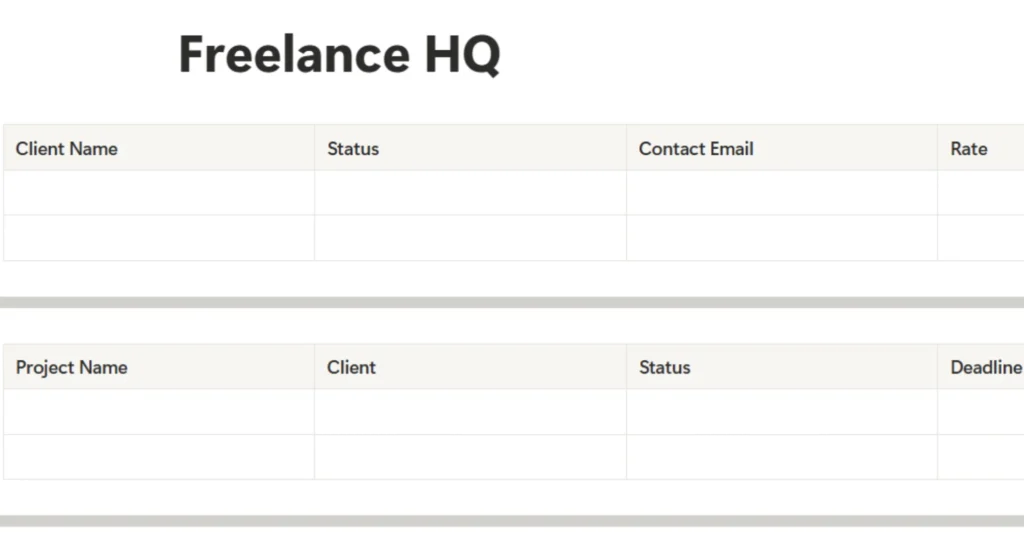
Second table, titled “Projects.” Columns: Project Name, Client (Relation → Clients), Status (Not Started/In Progress/Review/Complete), Deadline, Priority, Deliverables. The Relation column is the single most important field here, it’s what turns two separate lists into one connected system.
1 – Create the table as below
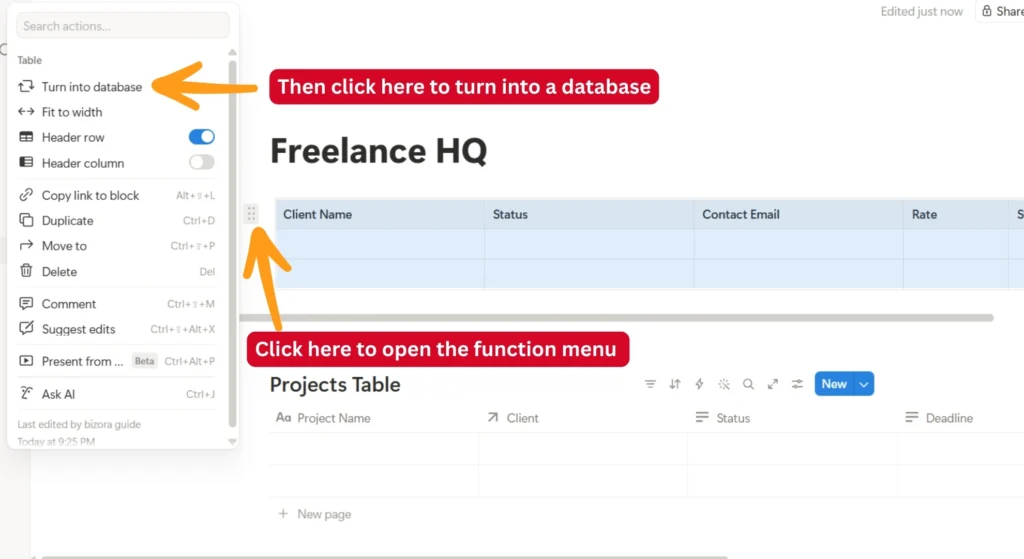
2 – Then turn the tables into database mode
3 – Then follow these steps
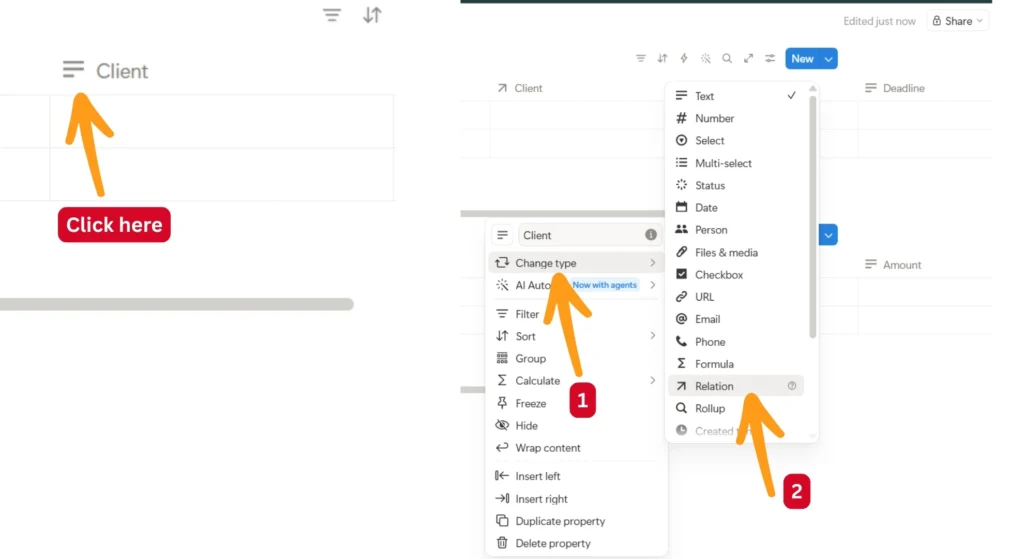
Then Finalize the relation making by following steps
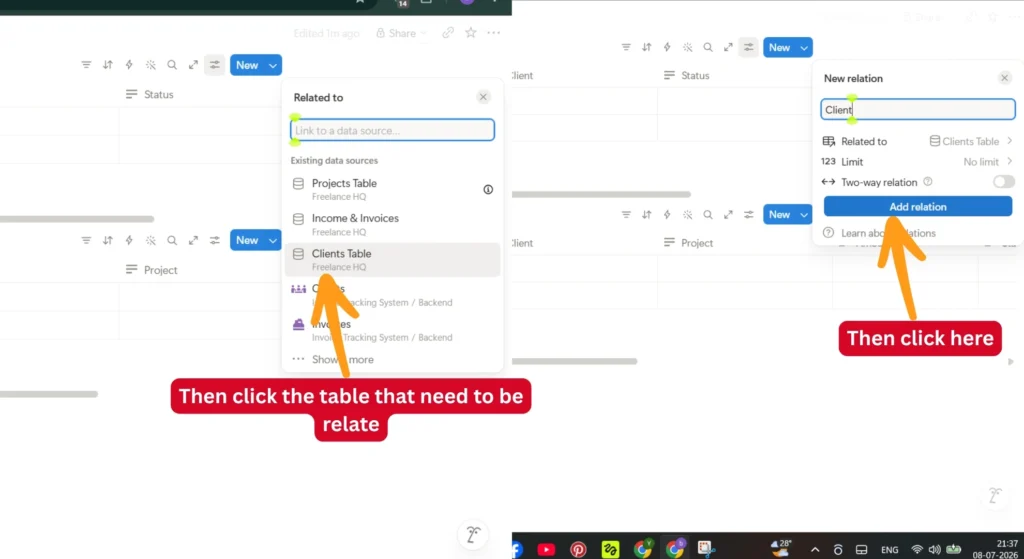
Notion’s guide to Relation properties
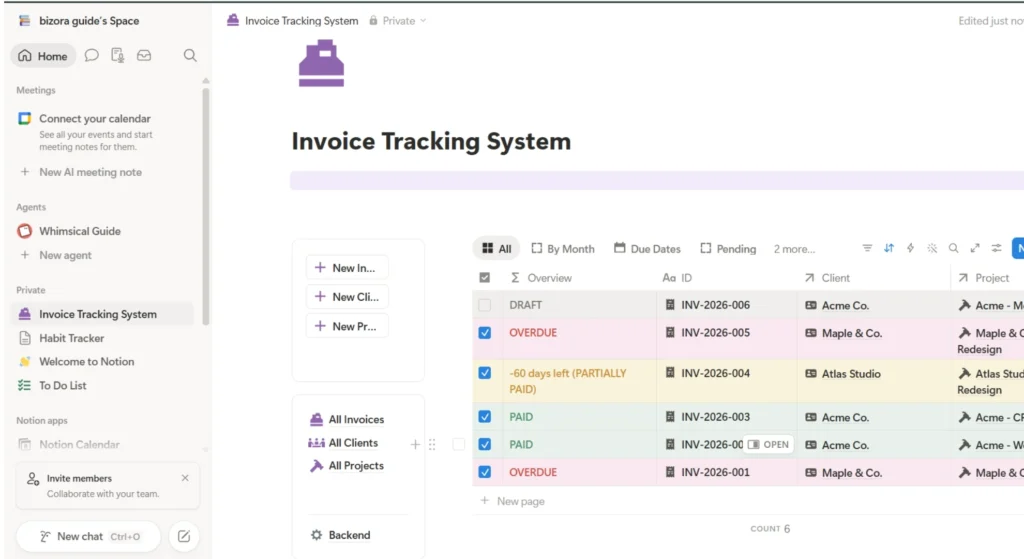
Build the Income tracker
Third table, “Income & Invoices.” Columns: Invoice #, Client (Relation), Project (Relation), Amount, Status (Draft/Sent/Paid/Overdue), Due Date, Payment Date. Add a formula column called “Days Outstanding” using dateBetween(now(), prop("Due Date"), "days") – it tells you instantly which unpaid invoices need a nudge before the relationship gets awkward.
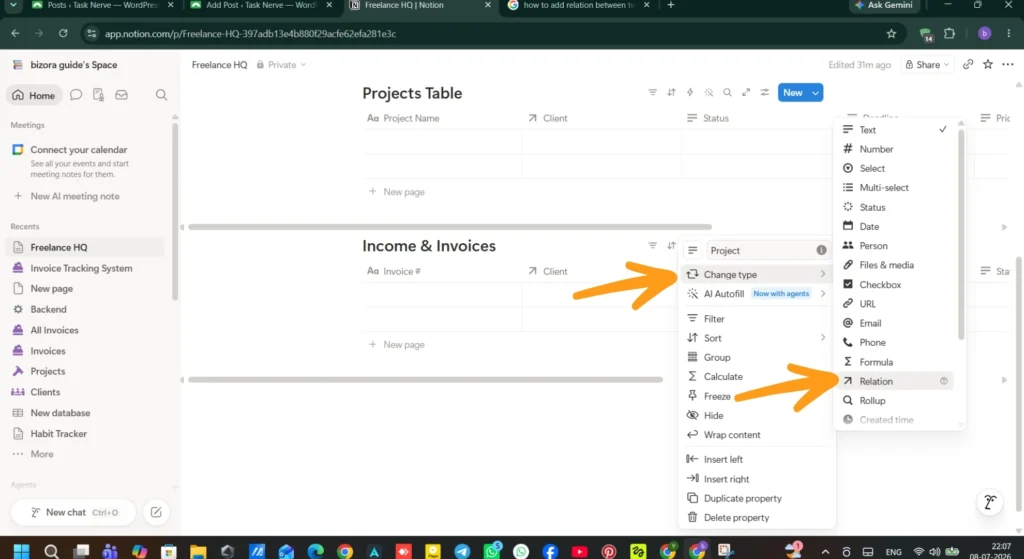
Notion’s guide to linked database views
Assemble the home page
Bring it together on your main page: a header, a short “Today’s Focus” to-do list (3–5 items max), a linked view of Projects filtered to “In Progress,” and a linked view of Income filtered to “Sent” or “Overdue.” Use /divider to separate sections visually.
This guide is to understand the basics movements and features of Notion when someone new to do things around here. You can always try simple things before creating complex things.
Where People Go Wrong (Before You Build Yours)
It’s worth knowing the common failure points before you invest the hour it takes to set this up:
- Perfecting the design before testing it in real use. A dashboard you’ve never actually worked from for a week is still a hypothesis, not a system.
- Building disconnected databases. Five separate tables with no Relations between them is scattered notes with better formatting.
- Manually retyping the same client name in multiple places. That’s what Relations and Rollups exist to prevent, use them.
- Ignoring how it looks on your phone. If you’ll ever update a project from your phone, test the layout there during setup, not after.
- Cramming everything onto the home page. If it takes three minutes of scrolling to see what matters, it’s failed at its one job, clarity.
- Never revisiting it. A dashboard reflecting last month’s clients gives you false confidence, which is worse than no system.
A Freelancer’s Actual Week With This System
Lena writes copy for six active clients and two ongoing retainers. Before Notion, her setup was Gmail folders, a Google Sheet she updated when she remembered to, and a Notes app list she’d stopped trusting months ago. Client details lived in her head or in a scroll-back search through old emails.
The shift wasn’t dramatic. She built the Clients and Projects tables in one sitting, added the Income tracker the following week, and started opening the dashboard each morning instead of her inbox. The biggest change showed up in her invoicing, the “Days Outstanding” column meant she stopped discovering overdue payments by accident and started following up before they became awkward. Over three months, that alone recovered over a thousand dollars in payments that would likely have slipped past unnoticed.
Nothing about how she works changed. Where her information lived did and that was enough.
Quick Answers to What People Usually Ask
Is this actually free? Yes. Notion’s free plan supports unlimited pages and databases for individual use, everything in this guide works without paying anything. Paid tiers add AI features and some advanced database options, but you don’t need them here.
How long does setup really take? Sixty to ninety minutes for the three core databases and a basic home page. Don’t try to build everything at once, a working simple version beats an unfinished perfect one.
Should I start from a template instead? If you’re brand new to Notion, a template can teach you the shape of things. But building from scratch even slowly, produces a system that actually matches how you work, rather than someone else’s workflow you’re renting.
Can I track billable hours in here too? Add an “Hours Logged” number field to Projects, or build a separate Time Log database linked to Projects if you want more granularity. It’s serviceable, not a dedicated time-tracking tool.
What about actually sending invoices, not just tracking them? Notion tracks the data, status, amount, due date. For generating the actual invoice document, pair it with something like Wave, which is also free.
Is my dashboard visible to clients if I share a link? Only if you toggle “Share to web” on a specific page. Nothing is public by default, and view-only links don’t grant edit access.
What if I stop using it after a week? Almost always a complexity problem, not a discipline one. Strip back to just Clients and a daily task list for two weeks. Add complexity only once that habit is automatic.
Can this handle more than one freelance business? Yes, Notion supports multiple workspaces on the free plan. Keep separate income streams in separate workspaces rather than mixing them into one crowded system.
What’s the real difference between a Notion page and a database? A page is free-form, notes, meeting summaries. A database is structured, like your Clients and Projects tables. Both link to each other; that’s where Notion’s flexibility comes from.
Do I need the paid AI features for this to work? No. Everything in this guide is built on the free plan. AI features (like summarizing call notes) are a nice add-on later, not a requirement to run the system.
Small Additions Worth Making Later
Once the three core databases feel automatic, usually after two to three weeks a few additions pay off disproportionately:
Set a Notion reminder on invoices approaching their due date, so follow-ups happen before you’d otherwise notice. Build a simple “Proposal Tracker” inside an Ideas page with columns for value, date sent, and outcome. Six months of that data tells you your actual close rate, which most freelancers guess at instead of know. And create an “End of Month” checklist page, invoices sent, hours logged, income totaled, that takes twenty minutes and quietly prevents the loose ends that cost freelancers money without them noticing.
Start Small, Not Perfect
You don’t need six databases, custom formulas, and a color-coded priority system on your first day. You need somewhere for your clients, your projects, and your money to live that isn’t scattered across four different apps and your own memory.
Build the Clients table today. Add the Projects table tomorrow. Give it two weeks before deciding whether it’s working. Most freelancers who stick with a system like this aren’t more disciplined than the ones who don’t, they just built something simple enough to actually keep using.