

I’ve seen this mistake too many times: a perfectly structured Notion dashboard gets ruined in seconds because of a small accidental drag or edit. One wrong swipe on mobile or a misclick while reorganizing blocks can break an entire system.
That’s where understanding How to Lock Pages in Notion becomes essential. It’s not just a feature—it’s a protection layer that helps you keep layouts stable while still using Notion freely. Whether you manage personal dashboards, client workspaces, or study systems, locking prevents unwanted changes that usually happen during daily use.
Build a Notion Habit Tracker for Students
Why Locking Your Notion Dashboards is Essential
Notion is flexible by design, but that flexibility comes with risk. Pages can be edited easily, which is great for productivity—but dangerous for structured systems.
Here are the most common real-world situations where locking becomes important:
- Mobile usage mistakes: While using the Notion mobile app, scrolling or holding blocks can accidentally move sections without clear warning.
- Shared workspace confusion: In collaborative setups, users with edit access can unintentionally modify layouts even if they only meant to update content.
- Complex dashboards: Multi-column layouts, synced blocks, and embedded databases can break alignment with a single accidental drag.
In all these cases, locking acts as a safety layer that protects structure without blocking usability.
Step-by-Step Guide: How to Lock a Notion Page on Desktop
Desktop is where most users build dashboards, so this is the most reliable method.
Step 1: Open your Notion page
Open the exact page you want to protect. This could be a dashboard, tracker, or project hub.
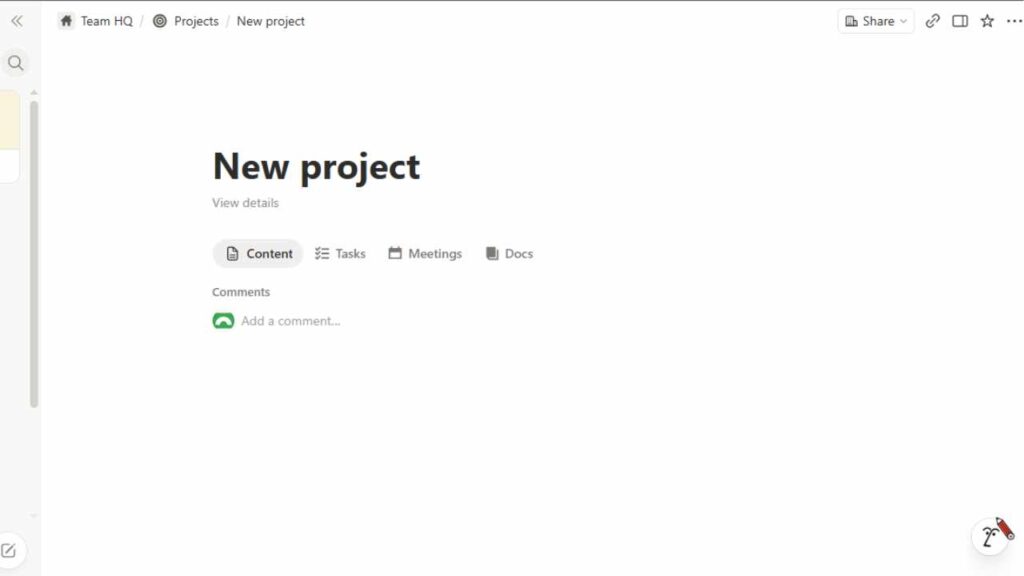
Make sure you are inside the page content area, not just the sidebar preview.
Step 2: Open the top-right menu (•••)
Look at the top-right corner of your screen and click the three-dot menu.
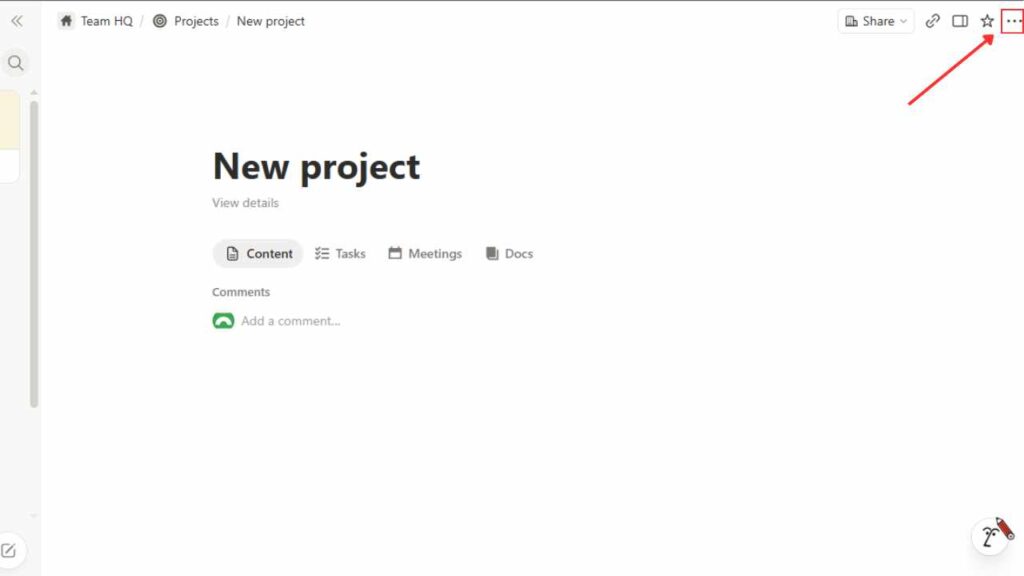
This menu controls page-level settings like sharing, layout options, and lock settings.
Step 3: Enable Lock Page
Find and turn on Lock Page from the dropdown menu.
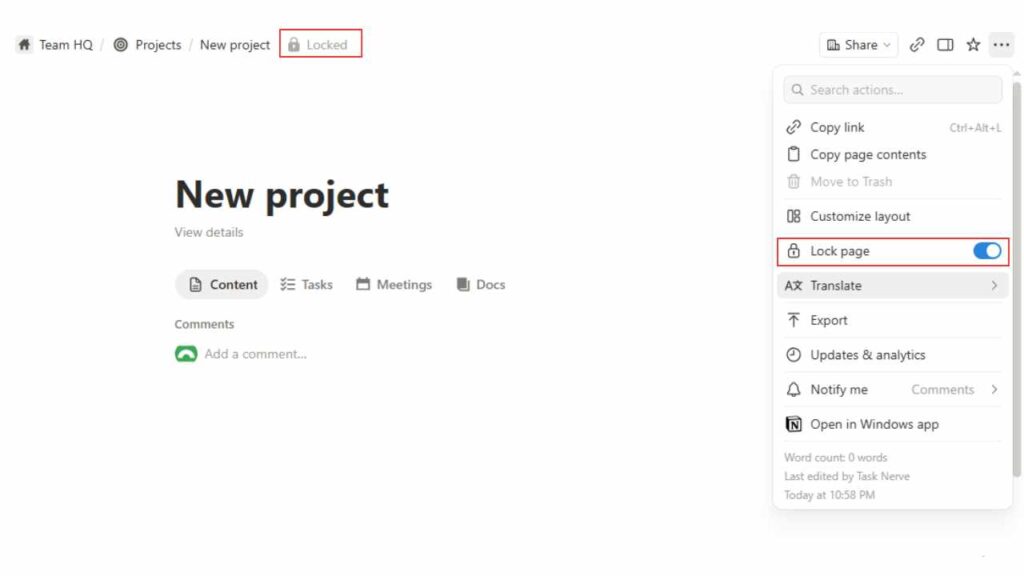
Once enabled, blocks inside the page cannot be dragged, moved, or accidentally edited in structure. Content remains viewable and scrollable, but layout changes are restricted.
This is the simplest way to prevent accidental edits in Notion without limiting access completely.
How to Lock Pages on the Notion Mobile App
On mobile devices, accidental edits happen more frequently due to touch interactions.
To lock a page:
- Open your page in the Notion mobile app
- Tap the top-right menu icon
- Scroll and enable Lock Page
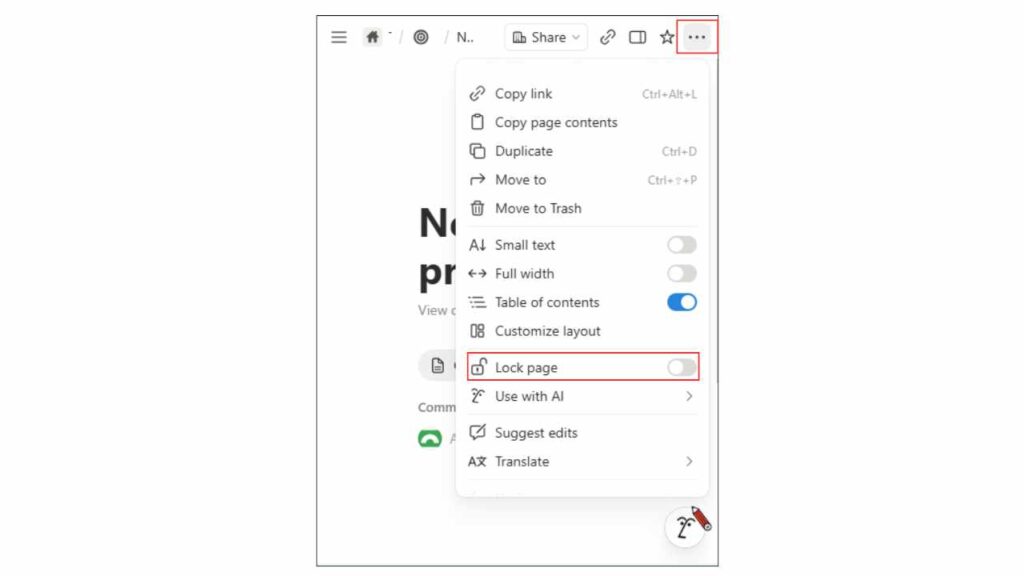
On mobile, the interface is more compact, so the option may appear inside nested settings depending on device size.
Once enabled, it reduces accidental block movement during scrolling or editing.
Database Locking vs. Regular Page Locking in Notion
These two are often confused, but they solve different problems.
A normal Lock Page protects layout structure. It stops blocks from being moved, deleted, or reorganized.
A lock Notion database works differently. It protects the database design—like views, filters, sorting, and properties—but still allows users to add or edit entries.
Simple breakdown:
- Page Lock → protects dashboard layout
- Database Lock → protects structure of tables and views
- Data entry → still allowed in both cases (depending on permissions)
If your issue is broken dashboards, use page locking. If your issue is team members changing database views or filters, use database locking.
Frequently Asked Questions (FAQ)
Does locking a parent page automatically lock sub-pages?
No, locking does not automatically apply to sub-pages. Each page has its own lock setting. If you want full protection across a system, you must manually enable Lock Page on every important page.
Why is the Lock Page option missing from my menu?
This usually happens due to Notion page permissions. If you only have limited access (like view or restricted edit), the lock option may not appear. It can also be hidden in certain database item views depending on structure.
What is the difference between Lock Page and View Only sharing?
View only is a permission setting that blocks editing entirely for users. Lock Page only prevents structural changes but still allows editing if permissions allow it.
In short:
- View Only = restricts users
- Lock Page = protects layout inside editable pages
They are often used together for better control.
Common Mistakes When Using Lock Page in Notion
Most users think locking solves everything. It doesn’t.
Here are real limitations:
- It does NOT prevent edits if someone still has edit permissions
- It does NOT secure content from authorized users
- It does NOT replace proper Notion page permissions
Locking is a protection layer, not a security system.
Best Practice for Safe Notion Setup
If you want a stable system:
- Use Lock Page for dashboards and layouts
- Use Notion page permissions for access control
- Use database locking for structured tables
- Keep editable areas separate from design areas
This combination prevents most accidental damage in real usage.
Final Thoughts: How to Lock Pages in Notion for Stable Workflows
If your workspace keeps breaking or shifting unexpectedly, the issue is not Notion—it’s lack of structure protection.
Learning How to Lock Pages in Notion gives you control over layout stability while still keeping the system flexible. It’s especially important for dashboards, client workspaces, and study systems where structure matters.
Once you apply locking correctly along with proper permissions, your workspace stops being fragile and becomes predictable.
That is the real goal: a system that doesn’t break when you use it normally.
External Resources
- Notion Help Center – Lock and unlock pages
- Notion Help Center