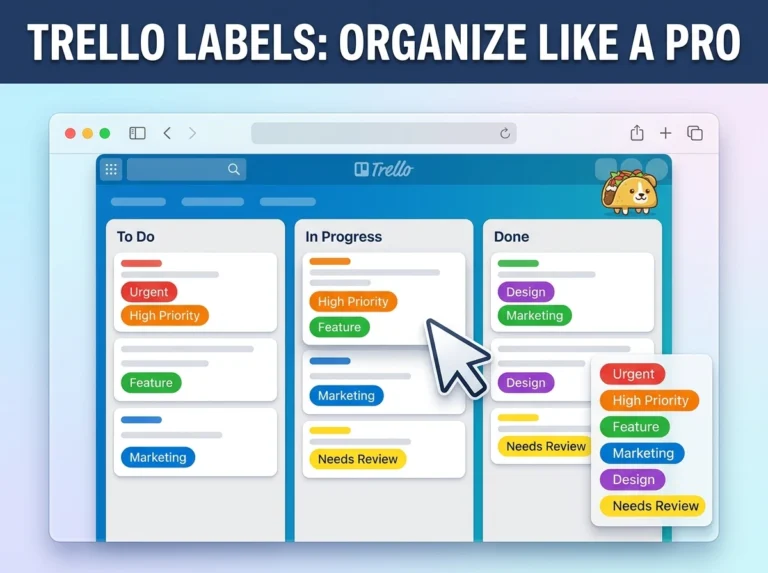
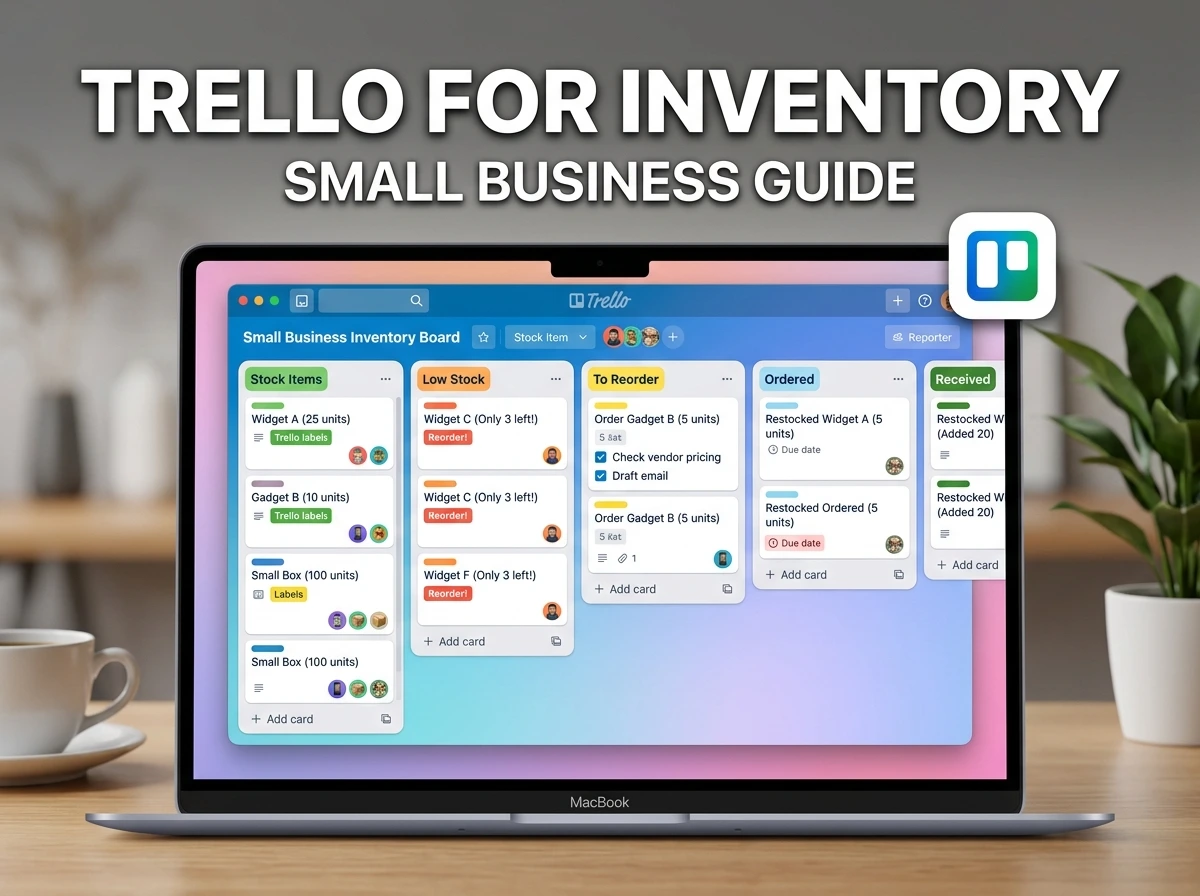

Running a small business means wearing every hat in the building. You’re the owner, the manager, the customer service rep, and somehow also the person who has to figure out why you just sold three units of something you thought you had one of.
Inventory management is one of those unglamorous problems that quietly causes expensive mistakes. You overorder because you couldn’t tell what you had. You run out of a bestseller because nobody noticed the stock was low. You spend 45 minutes hunting through a spreadsheet that was “updated last Tuesday” trying to answer a simple question from a customer.
The common assumption is that solving this requires expensive inventory software, something with monthly fees, a learning curve, and a sales call before you can even try it. But a lot of small businesses don’t need enterprise software. They need something simple, visual, and flexible enough to grow with them.
Trello, which most people know as a project management tool, is surprisingly capable as a lightweight inventory system, especially for small businesses managing under a few hundred SKUs. This guide shows you exactly how to build it, organize it, and use it daily without a single dollar spent on new software.
Why Small Businesses Struggle With Inventory (The Real Reasons)
Before building a solution, it helps to understand what actually goes wrong. Most small business inventory problems aren’t caused by a lack of software, they’re caused by a lack of system.
The three most common failure points are:
- No single source of truth — stock levels live in someone’s head, a spreadsheet nobody updates, and a notebook in the stockroom simultaneously
- Reactive restocking — businesses only notice they’re low on something after they’ve already run out
- No visibility without physical counting — knowing what you have requires walking to the shelf and counting, every single time
A good Trello inventory system fixes all three of these without requiring a dedicated inventory manager or expensive software.
Small business inventory management best practices – Square
Is Trello Right for Your Inventory Needs?
Trello isn’t the right fit for every business. Here’s an honest comparison to help you decide before you invest time setting anything up.
| Business Type | Trello Fits? | Why / Why Not |
|---|---|---|
| Retail shop with under 200 SKUs | ✅ Yes | Simple, visual, easy to update daily |
| Home-based product business | ✅ Yes | Free, flexible, accessible from phone |
| Food/beverage small business | ✅ Yes | Great for perishable tracking with due dates |
| E-commerce store (small catalog) | ✅ Yes | Works well with manual or semi-manual updates |
| Wholesale distributor (500+ SKUs) | ⚠️ Maybe | Manageable but gets unwieldy at scale |
| Multi-location retail chain | ❌ No | Needs dedicated multi-location software |
| Business needing automated reorder | ❌ No | Trello requires manual updates — no automation triggers |
| Business with POS integration needs | ❌ No | Trello doesn’t integrate directly with POS systems |
If your business is small, your catalog is manageable, and you want a free system you can set up today, Trello is a genuinely good fit. If you need automated stock deduction every time a sale is made, you’ll need a dedicated tool like Lightspeed, inFlow, or Cin7.
What You’ll Need Before You Start
- A free Trello account (trello.com)
- A list of your products or inventory items (even a rough one)
- 60–90 minutes for initial setup
- A clear decision on who on your team is responsible for updating stock levels
That last point matters more than most people think. Trello is only as accurate as the person updating it. Before you build the system, assign ownership.
How to Structure Your Trello Inventory Board
The core of your system is one Trello board with lists representing inventory status. Here’s the foundational structure that works for most small businesses:
The 5-List Inventory Board
| List Name | What Goes Here |
|---|---|
| 📦 All Products | Master list of every inventory item (one card per product) |
| ✅ In Stock | Items currently available with healthy quantity |
| ⚠️ Low Stock | Items approaching reorder threshold |
| 🔴 Out of Stock | Items currently unavailable — needs reordering |
| 🚚 On Order | Items ordered from supplier — awaiting arrival |
Every product in your inventory gets one card. That card moves between lists based on its current status. At any moment, you can see your entire inventory picture at a glance without opening a single card.
Step-by-Step: Building Your Trello Inventory System
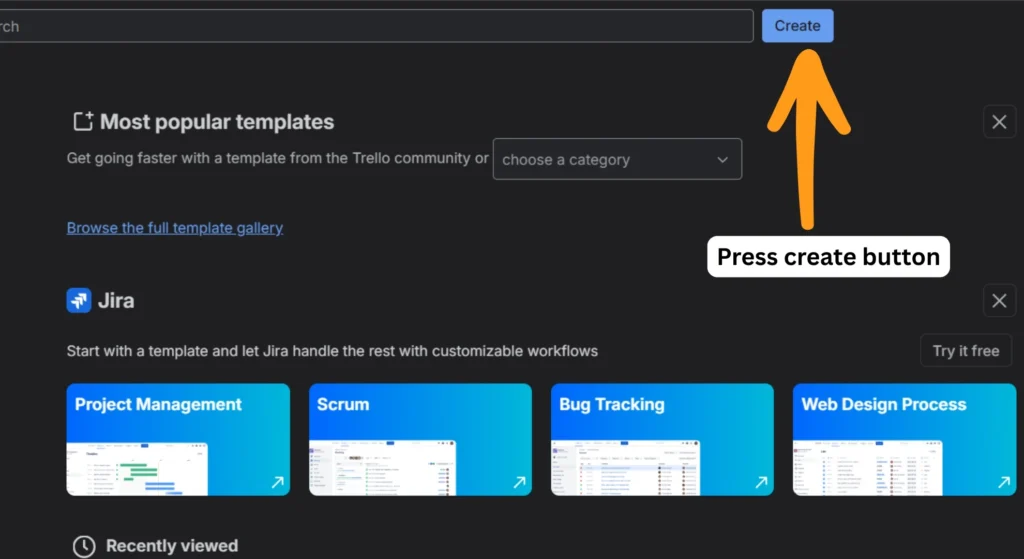
Step 1: Create Your Board
Log into Trello, click “Create new board,” and name it something clear like “Inventory – [Your Business Name].” Set the background to something neutral, you’ll be reading this board daily and a distracting background adds friction.
Create the five lists from the table above in order from left to right.
1 – First do this
2 – Then do this
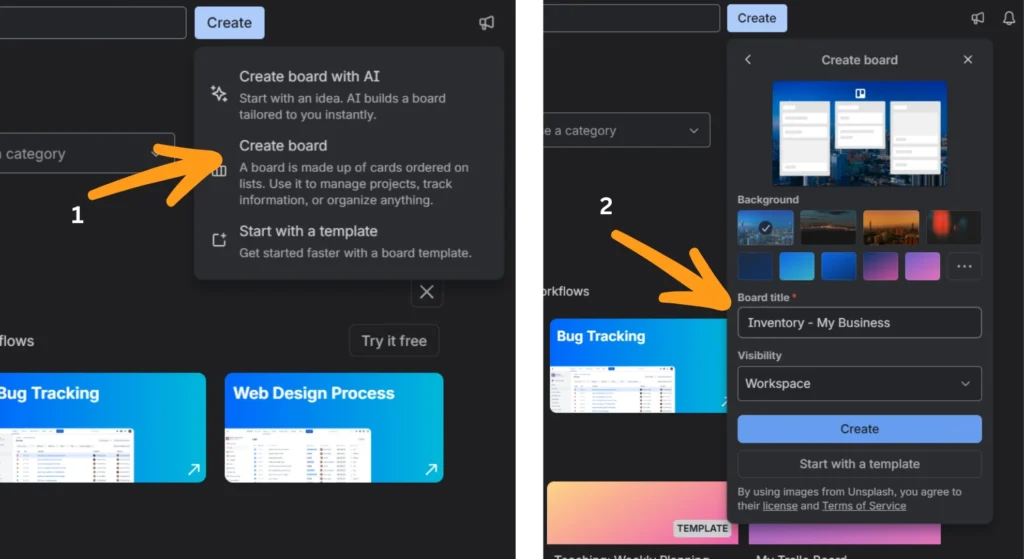
3 – Then add lists as below (use the above table)
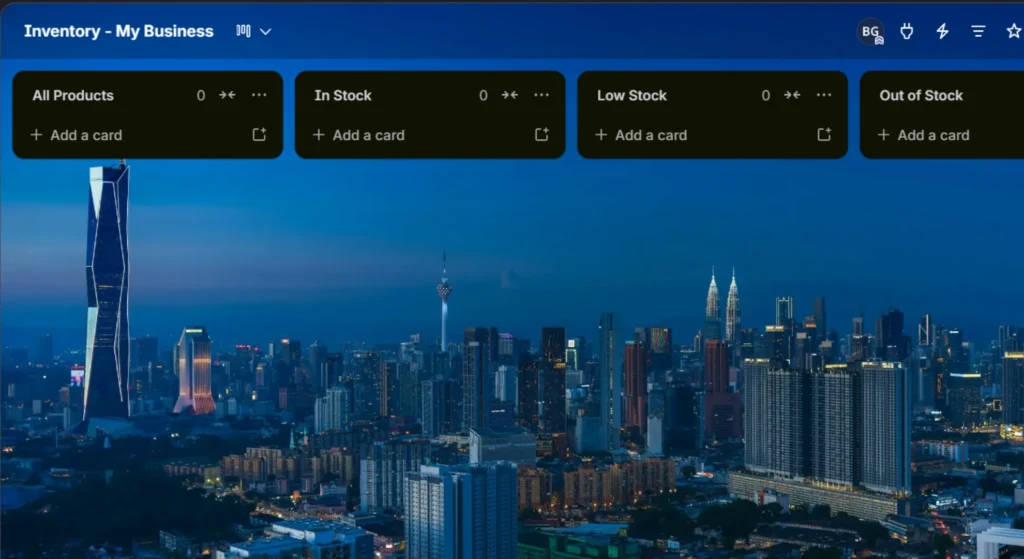
Step 2: Create a Card for Every Product
Each product gets its own Trello card in the “All Products” list. The card title should follow a consistent naming format:
[Product Name] — [SKU or Code]
Example: Ceramic Travel Mug 350ml — SKU-0042
Consistency in naming makes filtering and searching dramatically easier as your inventory grows.
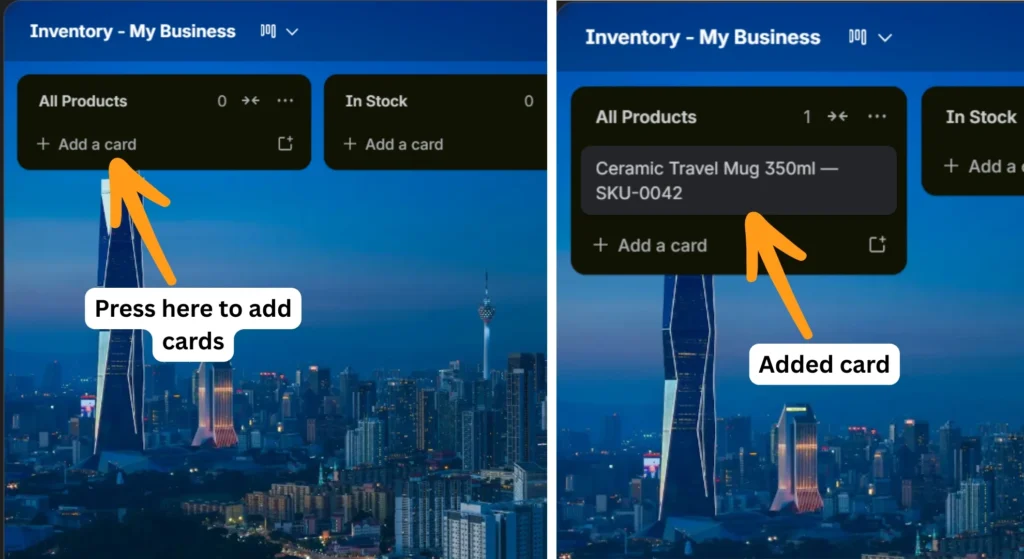
Step 3: Build Out Each Card With Key Details
Open each product card and fill in the following using the card description and checklist fields:
Card Description should include:
- Supplier name and contact
- Unit cost
- Selling price
- Reorder threshold (the quantity at which you need to reorder)
- Reorder quantity (how many you typically order)
- Storage location (shelf, bin, warehouse zone)
- Notes (size variants, seasonal item, fragile, etc.)
Create a checklist titled “Current Stock” with one item: the quantity on hand. Update this number whenever stock changes. Yes, it’s manual but it takes 10 seconds per update and keeps your board accurate.
1 – First do this
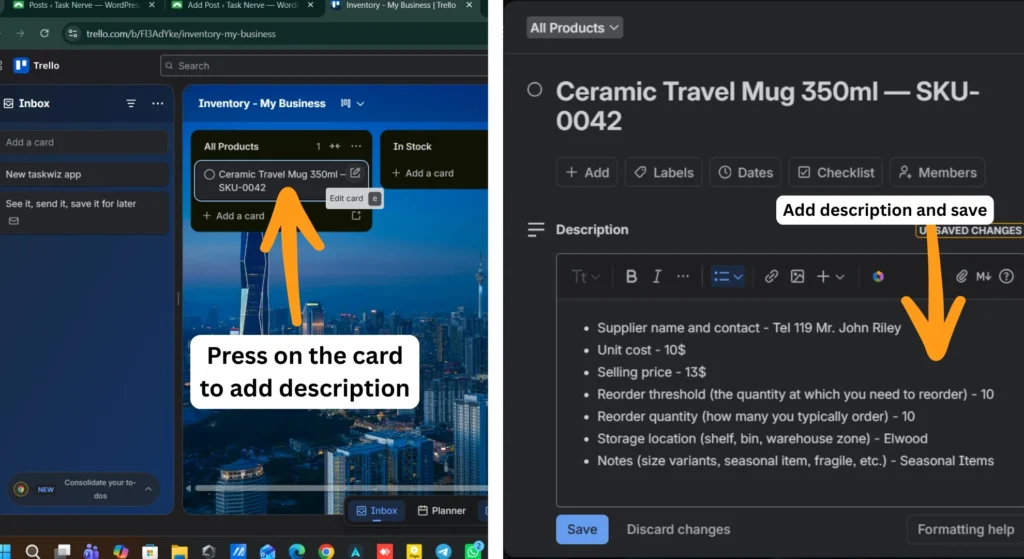
2 – Then add checklist title as below
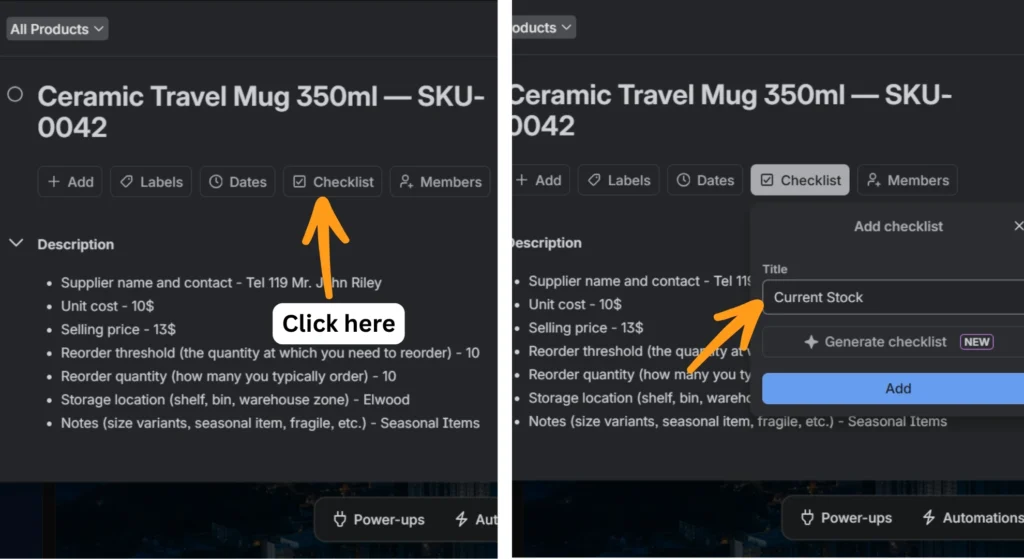
Step 4: Set Up Labels for Product Categories
Use Trello labels to organize products by category. This lets you filter the board to see only one product type at a time, essential once you have more than 30–40 items.
| Label Color | Category Example |
|---|---|
| 🔵 Blue | Clothing & Apparel |
| 🟢 Green | Food & Beverage |
| 🟣 Purple | Electronics & Accessories |
| 🟡 Yellow | Stationery & Office |
| 🔴 Red | Fragile / Handle With Care |
| ⚫ Dark | Discontinued / Phasing Out |
Adjust categories to match your actual product range.
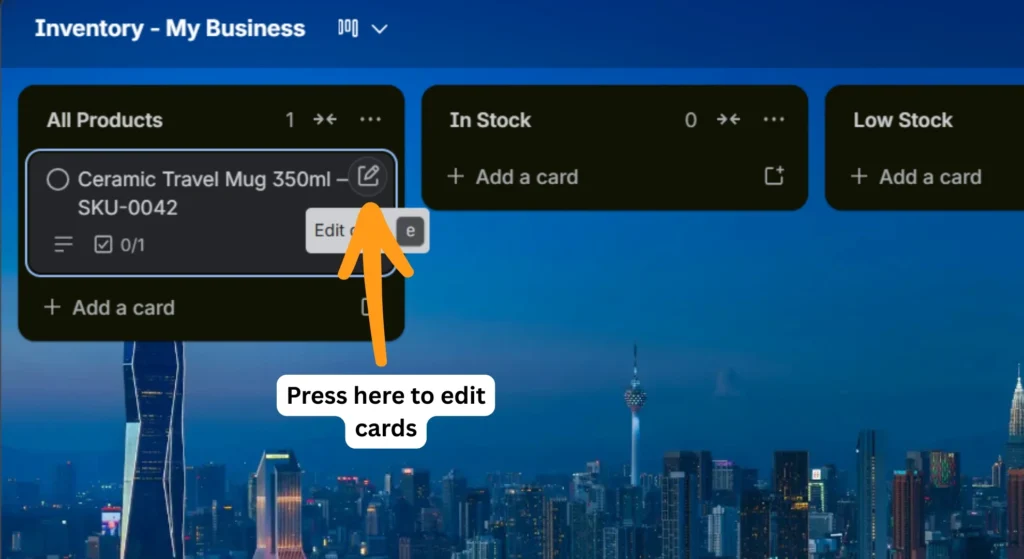
1 – First go to edit card
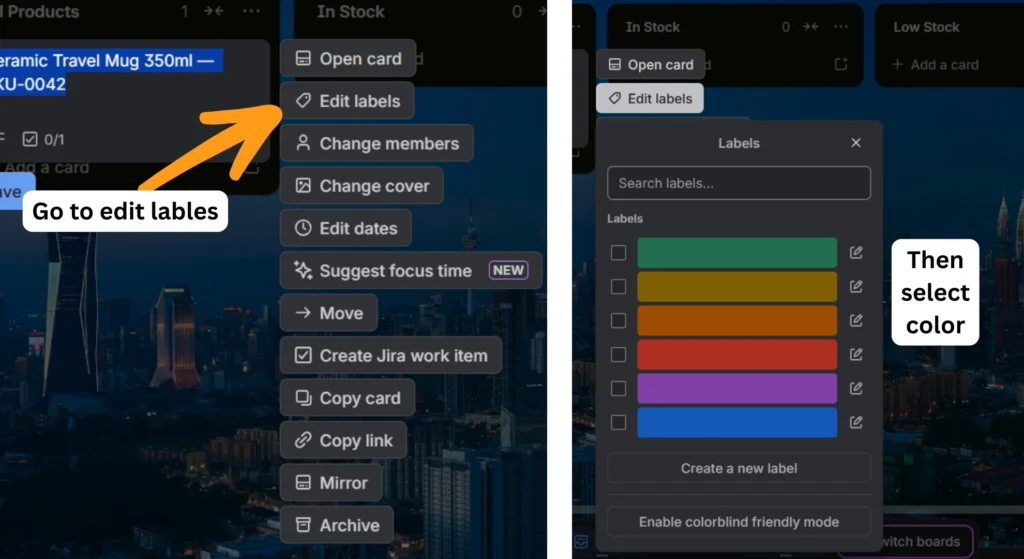
2 – The follow below steps
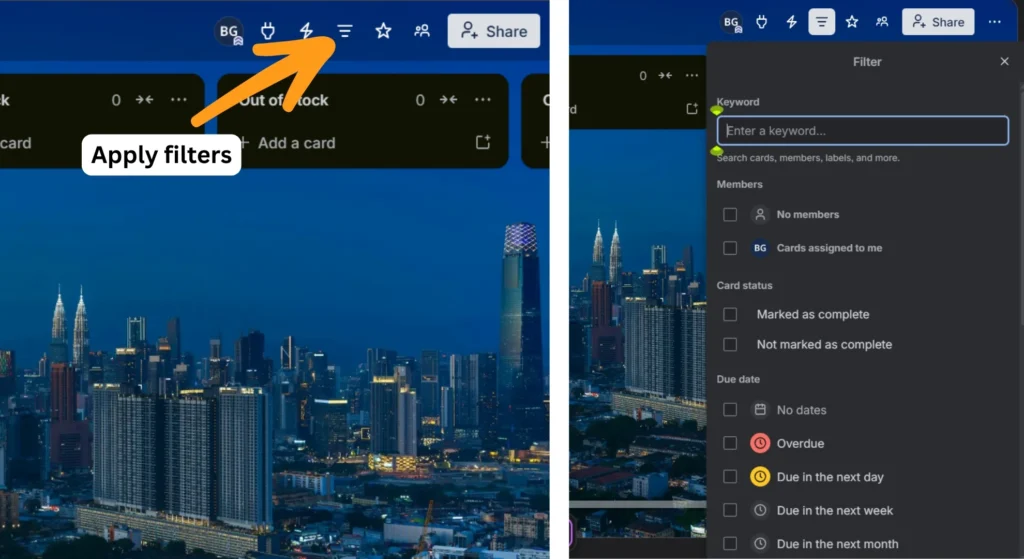
Filter option is available if you seek specific data.
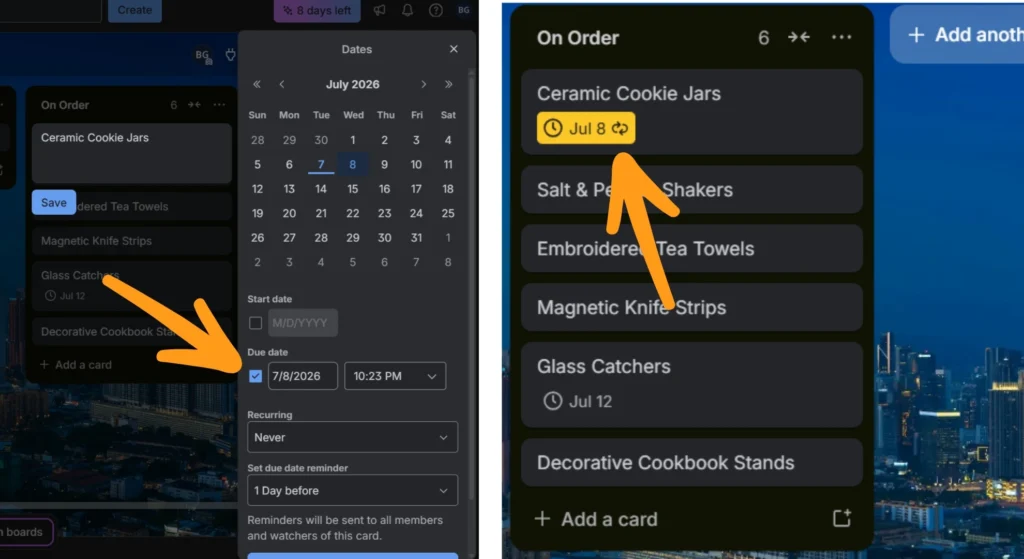
Step 5: Use Due Dates as Restock Reminders
Trello’s due date feature isn’t just for task deadlines. Set a due date on any card in the “On Order” list to represent the expected delivery date from your supplier. Trello will flag overdue cards in red automatically, so if a delivery is late, it becomes visually obvious without anyone having to track it manually.
For perishable goods, use due dates to represent expiry or “use by” dates instead.
1 – First do this steps to go to add due dates
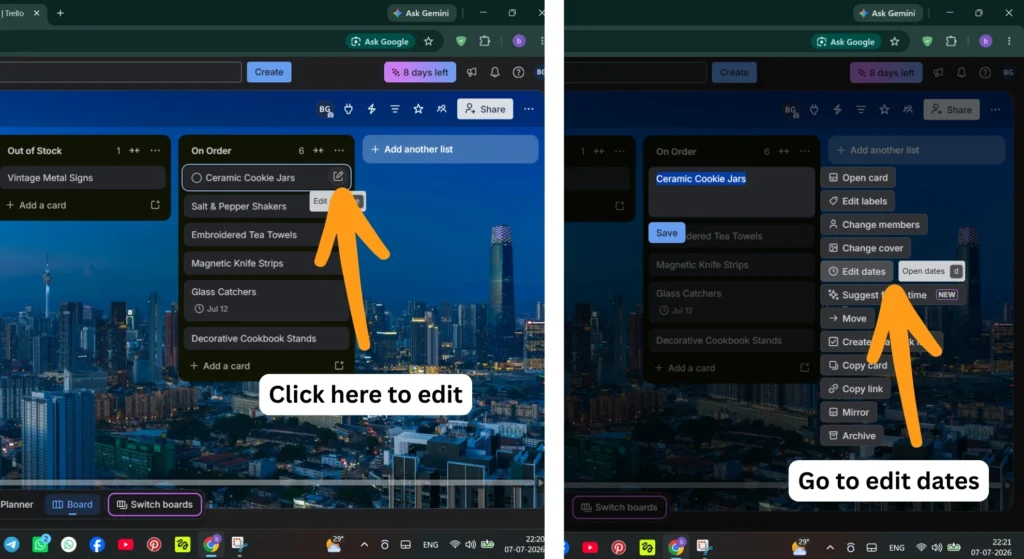
2 – Then add due dates as you wish
Step 6: Move Cards as Stock Status Changes
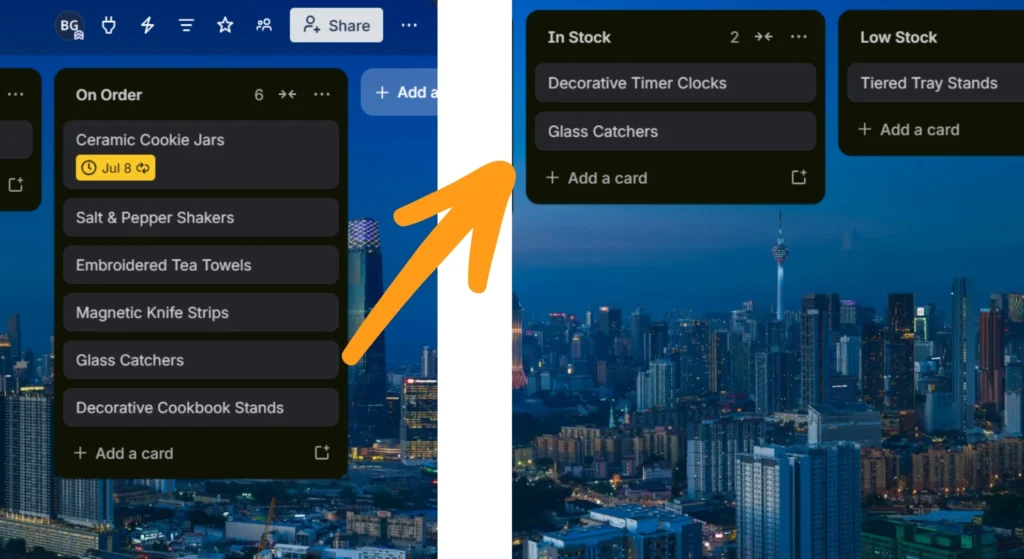
This is the daily habit that keeps the system alive. Whenever stock changes, a sale is made, a delivery arrives, or a product runs low. The card moves to the appropriate list:
- Stock drops below reorder threshold → move to ⚠️ Low Stock
- Stock hits zero → move to 🔴 Out of Stock
- Purchase order placed → move to 🚚 On Order
- Delivery arrives, stock replenished → move back to ✅ In Stock
This motion is the heartbeat of your system. It takes 15–30 seconds per update.
Moving the glass catchers card from on order list to the in stock list
Step 7: Add Team Members and Assign Ownership
If you have staff, add them to the Trello board. Assign specific product cards to the team member responsible for managing that product’s stock. When they update a card, they move it. When you want to know who’s responsible for a stock issue, the assignment tells you instantly.
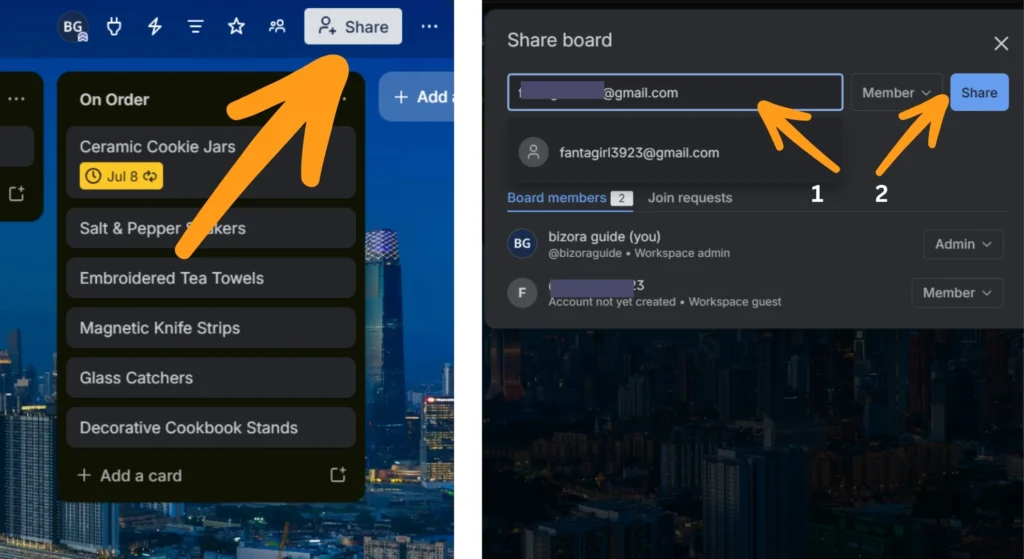
Invite Team Members
- Open your Trello board.
- Click the Share button in the top-right corner.
- Enter your team member’s email address or username.
- Click Invite.
Assign Product Cards
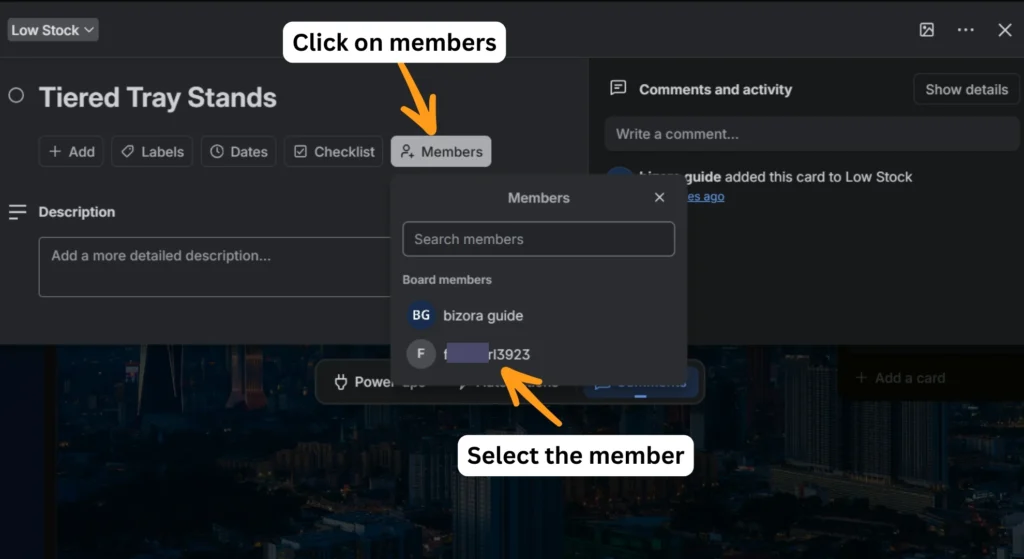
Once your team members have joined the board:
- Open the product card you want to assign.
- Click Members on the right side of the card.
- Select the person responsible for managing that product.
- Close the card to save the assignment.
A small profile picture will appear on the card, making it easy to see who owns that product at a glance.
Trello Inventory Management Template
Setting Up Your Label and Card System: A Visual Overview
Here’s how a fully set-up product card might look for a small homeware shop:
| Field | Example Entry |
|---|---|
| Card Title | Ceramic Travel Mug 350ml — SKU-0042 |
| Label | 🟢 Kitchenware |
| Current Stock (Checklist) | 14 units |
| Reorder Threshold | 10 units |
| Reorder Quantity | 50 units |
| Supplier | Pacific Ceramics — [email protected] |
| Unit Cost | $4.20 |
| Selling Price | $18.00 |
| Storage Location | Shelf B3 |
| Due Date | (Set when on order — expected delivery date) |
| List Position | ✅ In Stock |
When this card’s stock checklist drops to 10, the staff member updates the count and moves the card to ⚠️ Low Stock. The owner sees it immediately on the board and places a reorder. Card moves to 🚚 On Order with a delivery due date set. Delivery arrives, count is updated to 64 units, card moves back to ✅ In Stock. Total time for each update: under a minute.
Practical Use Case: How a Small Gift Shop Manages 120 Products in Trello
Meet Sandra, owner of a small gift and homeware shop with 120 active products and a two-person team. Before Trello, her inventory “system” was a spreadsheet last updated three weeks ago and a running mental list she kept forgetting. She regularly ran out of bestsellers mid-weekend and over-ordered slow-moving items based on gut feel alone.
Here’s what changed after building a Trello inventory board:
| Problem Area | Before Trello | After Trello | Result |
|---|---|---|---|
| Stock visibility | Checked spreadsheet or counted physically | Board visible on phone in real time | Instant awareness anywhere |
| Stockouts (running out unexpectedly) | 3–5 per month | Near zero | Eliminated with Low Stock list |
| Reorder timing | Reactive — after already out of stock | Proactive — triggered at threshold | Orders placed days earlier |
| Staff accountability | Unclear who tracks what | Each product assigned to a team member | Clear ownership, faster updates |
| Supplier follow-up | Mental notes or forgotten | Due dates on On Order cards | Late deliveries flagged automatically |
| New stock arrival processing | 20–30 min confusion | Card moved, count updated in 2 min | 90% faster |
Sandra’s board has 120 cards, five lists, eight category labels, and two team members. Her morning routine now includes a 5-minute Trello board scan before opening the shop. That’s her entire inventory check, no spreadsheet, no stockroom walk-through unless a card actually flags a problem.
Trello Inventory vs. Dedicated Inventory Software
At some point, growing businesses will outgrow Trello. Here’s how it honestly compares to dedicated options so you know when to upgrade:
| Feature | Trello (Free) | inFlow Inventory | Lightspeed Retail | Zoho Inventory |
|---|---|---|---|---|
| Cost | Free | From $89/month | From $89/month | Free tier available |
| Setup Time | 1–2 hours | Several hours to days | Days to weeks | Several hours |
| POS Integration | ❌ None | ✅ Yes | ✅ Yes | ✅ Yes |
| Automatic Stock Deduction | ❌ Manual only | ✅ Yes | ✅ Yes | ✅ Yes |
| Barcode Scanning | ❌ No | ✅ Yes | ✅ Yes | ✅ Yes |
| Reporting & Analytics | ❌ None | ✅ Full reports | ✅ Full reports | ✅ Basic to full |
| Best For | Under 200 SKUs, simple needs | Small to mid business | Retail-focused businesses | Product-based SMBs |
| Learning Curve | Very Low | Medium | High | Medium |
The honest answer: Trello is your best starting point if you’re early-stage, budget-constrained, or unsure whether you need a full inventory system. Once you’re processing over 50 stock movements per week or managing more than 200 SKUs, dedicated software pays for itself quickly.
Mistakes to Avoid
- Creating one card per unit instead of one card per product — your Trello board should have one card for “Blue Denim Jacket — Size M,” not 14 separate cards for each unit you have. Stock quantity lives inside the card, not as separate cards on the board.
- Not setting a reorder threshold before you go live — without a defined trigger point for when to reorder, the Low Stock list never gets used properly. Decide on thresholds for every product before you move a single card.
- Skipping the daily update habit — a Trello inventory board is only as accurate as its last update. If your team isn’t updating stock levels at point of sale or point of receipt, the board becomes fiction within a week. Build the update into your existing routine — make it part of processing a sale, not a separate step.
- Using too many labels with no clear meaning — every color should have a defined category that every team member understands. An unlabeled red card that someone added to mean “important” creates confusion fast. Write your label definitions somewhere visible.
- Not assigning ownership to products — shared responsibility is no responsibility. Every product category, if not every card, should have a named person responsible for keeping it updated. Without this, updates happen inconsistently and accuracy degrades.
- Forgetting to archive discontinued products — when you stop carrying a product, archive the card rather than deleting it. Deleted cards lose all their history. Archived cards can be retrieved if you ever reintroduce the product.
- Treating Trello as a permanent solution without reassessing — Trello is an excellent starting point, not necessarily a forever solution. Revisit your system every six months and ask honestly whether its limitations are starting to cost you money. If the answer is yes, it’s time to graduate to dedicated software.
Pro Tips (Advanced)
- Use Trello’s Card Repeating Power-Up for recurring stock checks. Set up a recurring card that appears every Monday morning reminding your team to audit the Low Stock and Out of Stock lists. It’s a simple automation that prevents the weekly check from being forgotten.
- Add photos to every product card. Trello lets you attach images directly to cards. A photo of each product on its card makes the board accessible to any team member, even someone new who doesn’t know SKU codes yet. Visual identification removes ambiguity entirely.
- Build a “Supplier Contacts” board alongside your inventory board. One card per supplier with contact details, minimum order quantities, typical lead times, and payment terms. Link the supplier card in the relevant product cards. When you need to reorder, all the information is one click away.
- Use Trello’s Copy Card feature for product variants. If you stock the same item in five colors or three sizes, build one master card then copy it for each variant, it carries over the description and checklist structure. Update only what’s different (SKU, color, location). Saves significant setup time.
- Create a “Recently Updated” list for team transparency. When a team member updates a stock level, they briefly move the card to a “Recently Updated” list before placing it in its correct status list. This gives managers a visible audit trail of what was changed today without needing to dig through card activity logs.
- Run a monthly physical count and reconcile with Trello. No digital system is perfectly accurate over time. Schedule a monthly physical count of your top 20 highest-velocity products and update Trello to match. This prevents small errors from compounding into large discrepancies.
Official Trello Automation (Butler) Guide
FAQs
1. Can Trello really work as an inventory management tool? For small businesses with under 200 SKUs and manual stock updates, yes genuinely. It won’t replace dedicated inventory software for complex needs, but as a free, flexible, visual system for tracking stock levels and reorder status, it works remarkably well.
2. How do I handle product variants (sizes, colors) in Trello? Create a separate card for each variant, one card for “Red Tote Bag – Small,” another for “Red Tote Bag – Large.” Use the same category label for both and a consistent naming convention so they group together visually when you scroll or search.
3. What happens when a team member forgets to update the board? This is the biggest risk with any manual system. Reduce it by making updates part of an existing process, not a separate step. Update the Trello card when processing the receipt, not later. Consider a weekly 10-minute team audit of the board to catch anything missed during the week.
4. Can I access my Trello inventory board on my phone? Yes, the Trello mobile app (iOS and Android) is free and fully functional. Many small business owners check their board on their phone during the day, update stock counts from the stockroom, and monitor deliveries without going to a computer.
5. How do I handle seasonal products or limited-edition items? Create the product card when you first stock the item, include the expected sell-through date in the description, and add a “Seasonal” label. When the season ends and the product is discontinued, archive the card rather than deleting it, you’ll want the history if you stock it again next season.
6. Is the Trello free plan enough for an inventory system? For most small businesses, yes. The free plan supports unlimited cards, unlimited members on a board, basic labels, due dates, and card attachments. Everything you need for a functional inventory system. Paid plans add features like custom fields, which can be useful but aren’t essential to get started.
7. How many products is too many for Trello inventory? There’s no hard limit, but usability starts declining above 300–400 products on a single board. Beyond that, filtering and searching become necessary for daily use rather than optional. At 500+ SKUs, dedicated inventory software becomes a more practical choice.
8. Can I use Trello inventory for a food or beverage business? Yes, with one specific adaptation: use Trello’s due date field on product cards to represent expiry or best-before dates rather than delivery dates. Sort cards by due date to surface items expiring soonest. This turns Trello into a lightweight FIFO (First In, First Out) management tool.
9. What’s the best way to onboard staff onto the Trello inventory system? Create a “How We Use This Board” card pinned to the top of your first list. Include the label key, the five-list structure explanation, and exactly when and how to update a card. Keep it to one screen, if it’s longer than that, staff won’t read it under pressure.
10. When should I switch from Trello to dedicated inventory software? Watch for these signals: you’re making more than 50 stock movements per day, you need barcode scanning, you want automatic deduction tied to a POS system, or you’re losing money on stockouts or overstock despite using the Trello system. Any one of these is a clear sign to upgrade.
Final Thoughts
Inventory chaos is expensive, in lost sales, wasted money on overstock, and the daily mental overhead of never quite knowing what you have. But solving it doesn’t have to mean spending hundreds of dollars a month on software your business hasn’t grown into yet.
Trello gives you a visual, flexible, free starting point that most small businesses can set up in an afternoon and actually maintain over the long term. It’s not perfect. It’s manual. It doesn’t scale forever. But it’s a real system and a real system, consistently used, beats a perfect system that nobody follows.
Start with your five lists. Build your first ten product cards. Assign ownership. Run it for 30 days and watch your inventory clarity transform from a daily source of stress into a five-minute morning check.
The expensive software can wait. The system starts today.